

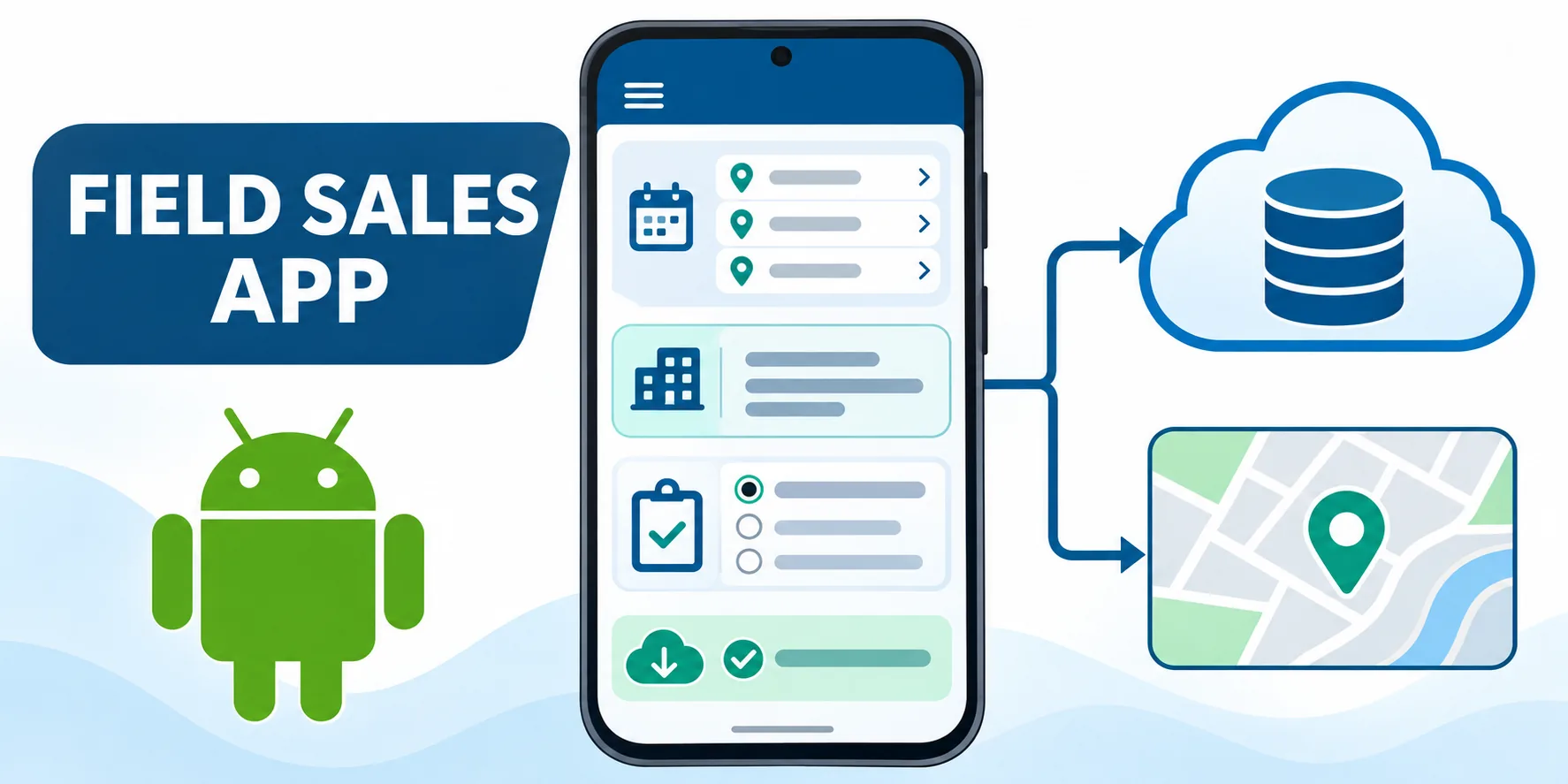
Translate Field Sales Work into App Requirements
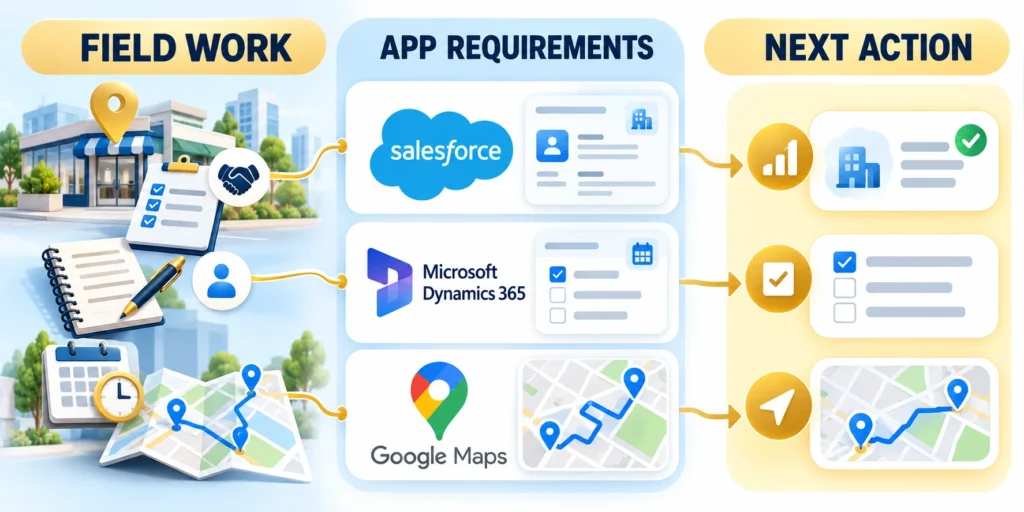
A field sales mobile app should help representatives prepare, meet customers, record outcomes, and move the next decision forward.
Start with the work and the people responsible for it. A remote manager, account executive, and field representative may need different views of the same account.
Map the sales motion before drawing screens
Interview representatives and observe a normal visit day. Record where they search for customer facts, make decisions, capture commitments, and hand work to another team.
Map the field workflow through these stages:
- Before the visit: confirm the customer, objective, attendees, and relevant history.
- During the visit: view permitted account details and record only useful outcomes.
- After the visit: assign follow-up, update opportunity state, and submit any order or approval.
- When blocked: show who owns the issue and how the representative can continue or escalate.
Turn those observations into a workflow map. Include exceptions such as a canceled appointment, an unavailable product, an approval request, or a customer with no signal.
Separate required work from optional convenience
Mark each proposed function as required for the next customer action, helpful but optional, or outside the first release. This keeps the first version focused.
For example, a rep may need assigned visits and product availability before a meeting. A full territory heat map may be useful later, but it should not delay those basics.
Build a Screen Around the Next Customer Action

A representative opening the app between appointments needs a clear answer to one question: what should I do next?
Put the next assigned visit, customer name, time, location, and purpose near the top. Keep account history and less urgent metrics available without crowding the first screen.
Design a useful daily workspace
Use a short agenda with a route view, visit status, and follow-up tasks. Let reps switch between map and list views; routes are only one planning option.
Show why a task is assigned and who owns it. A label such as “Review renewal risk before Thursday’s meeting” is more useful than an unexplained red badge.
Make status visible at a glance
Represent these visit states explicitly:
- Scheduled: appointment time and customer location are confirmed.
- In progress: the representative has opened the visit workflow.
- Needs follow-up: an owner and due date are required.
- Waiting to sync: saved locally but not yet received by the system of record.
Test make status visible at a glance with representative customers, workflows, exceptions, and operating conditions before expanding the decision.
Pair color with text or an icon so status does not depend on color perception. Keep touch targets comfortable for use outdoors or while carrying equipment.
Reduce friction in the conditions reps actually face
Check the interface in bright sunlight, with one hand, on a smaller phone, and over a slow connection. Put common actions within easy reach.
Do not make the map the only route to a customer. A searchable list, directions handoff, and address that can be copied support different devices and work preferences.
Test a complete task on the actual device
Define the owner, evidence, decision boundary, and expected result for test a complete task on the actual device in field sales mobile application design.
Test the screen through these field tasks:
- Ask a representative to find the next visit without coaching, and note where they hesitate.
- Repeat outdoors and with weak connectivity; confirm labels, touch targets, and saved status remain clear.
- Measure account access, outcome recording, and follow-up assignment against the existing workflow.
- Ask what will sync later or needs immediate attention; revise labels when answers differ.
- Compare roles on the same account to confirm each sees only appropriate fields and actions.
Test test a complete task on the actual device with representative customers, workflows, exceptions, and operating conditions before expanding the decision.
Make Customer, Product, and Territory Context Portable

Useful context helps a representative answer a customer without searching multiple systems or relying on memory.
Keep these portable context boundaries visible:
- Customer ownership
- Current catalog
- Territory assignment
- Permission scope
Choose records based on the next task and the user’s permissions. More cached information is not automatically better, especially when devices may be shared or lost.
Select a minimum useful field set
Define the owner, evidence, decision boundary, and expected result for select a minimum useful field set in field sales mobile application design.
Test select a minimum useful field set with representative customers, workflows, exceptions, and operating conditions before expanding the decision.
| Context | Useful mobile fields | Guardrail |
|---|---|---|
| Customer account | Name, address, owner, contact method, activity | Restrict sensitive notes by role |
| Visit | Objective, outcome, action, due date | Save a draft when connectivity is unavailable |
| Product or service | Catalog, availability, price, documents | Show when availability or price was last refreshed |
| Territory | Accounts, visit sequence, coverage owner | Use location only when it supports a defined task |
| Opportunity | Stage, decision date, commitment, owner | Restrict internal forecast details |
Treat location and customer records as sensitive
Explain why and when the app uses location. Scheduled-visit directions may need it while the app is open; continuous tracking needs a separate, justified purpose.
Show the source and freshness of time-sensitive information. A product quantity or account note last refreshed yesterday should not appear indistinguishable from current data.
Limit portable context to field decisions
Cache only the records, fields, and history required for assigned visits. Broad offline exports increase exposure, refresh time, conflict risk, and support complexity.
Show freshness and ownership beside time-sensitive prices, availability, territory, and contact information. Representatives need to distinguish current evidence from potentially stale local context.
Support Intermittent Connectivity Without Losing Work
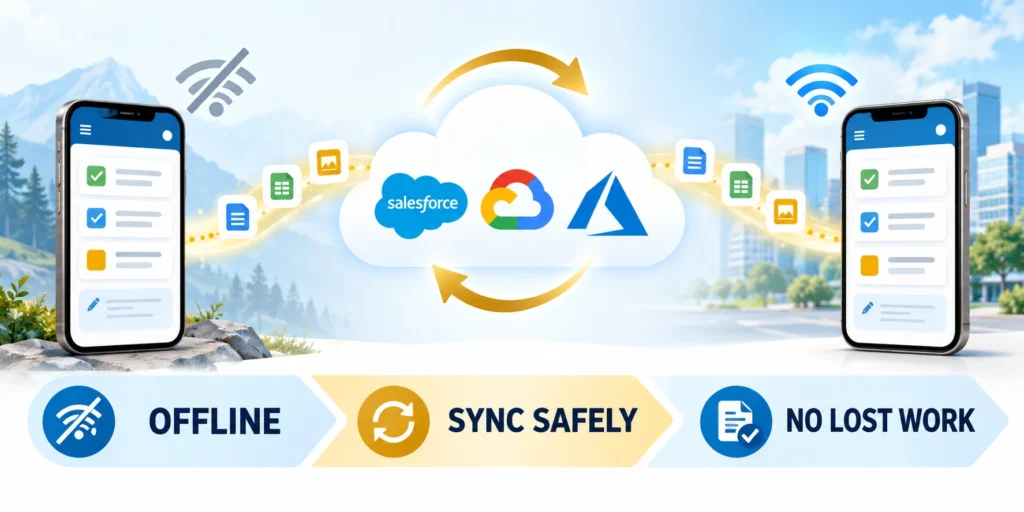
Representatives may work in elevators, rural areas, customer basements, or buildings with unreliable service.
Choose which tasks must work offline. At minimum, teams often need assigned visit details and a way to save notes or follow-up actions without losing entered work.
Make offline behavior explicit
Test make offline behavior explicit with representative customers, workflows, exceptions, and operating conditions before expanding the decision.
Support offline work through these controls:
- Show which records are available offline and when they were last refreshed.
- Save field edits locally and label them as pending synchronization.
- Retry temporary connection failures, but surface authentication or validation errors for action.
- When two people change the same record, show the conflict and the authoritative resolution.
Google’s offline-first app guidance recommends a local data source for core reads and writes, with synchronization handled deliberately when network access returns.
Keep updates recoverable
Assign each queued change a stable identifier so a retry does not create a duplicate visit note or order. Retain a visible pending queue until the server confirms the result.
Use clear states: “Saved on this device” means local only; “Submitted to sales operations” means the server confirmed receipt.
Keep customer alerts distinct from saved work
Test keep customer alerts distinct from saved work with representative customers, workflows, exceptions, and operating conditions before expanding the decision.
For alert design that complements the field workflow, see our guide to useful B2B push notifications.
Capture Visit Outcomes in a Few Reliable Steps
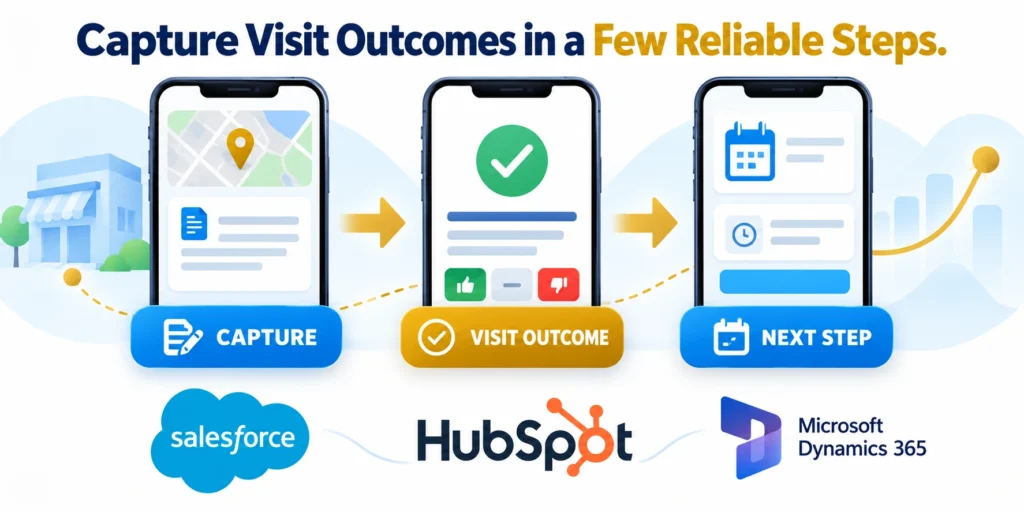
A visit record should make the next step easier, not turn a customer conversation into a long data-entry session.
Keep routine capture short, allow optional detail when a case requires it, and autosave drafts so an interruption does not erase work.
Use a repeatable visit-close flow
Capture each visit through these steps:
- Confirm the account and visit from the assigned schedule.
- Choose an outcome such as completed, rescheduled, or no contact.
- Record the customer’s decision and the agreed next action.
- Assign an owner and due date for each follow-up.
- Submit online or save locally with a clear pending state.
Test use a repeatable visit-close flow with representative customers, workflows, exceptions, and operating conditions before expanding the decision.
Make the required fields depend on the outcome. A completed purchase discussion may need a product and next step; a rescheduled meeting may need a new date.
Avoid forms that encourage low-quality data
Use picklists for genuinely standardized values, but preserve a short note when context matters. Do not force a representative to invent a reason just to submit.
Use camera, microphone, or barcode features only when the task needs them. Explain the purpose and request device permissions at the moment the representative chooses that function.
Keep orders and quotes reviewable
Before submission, summarize the customer, line items, quantity, price basis, delivery terms, and approval status. Let the rep correct an error before it becomes a downstream order.
If a price or inventory value changed since it was loaded, ask the user to refresh or confirm the current value instead of silently submitting stale data.
Protect Customer Data Across Personal and Shared Devices
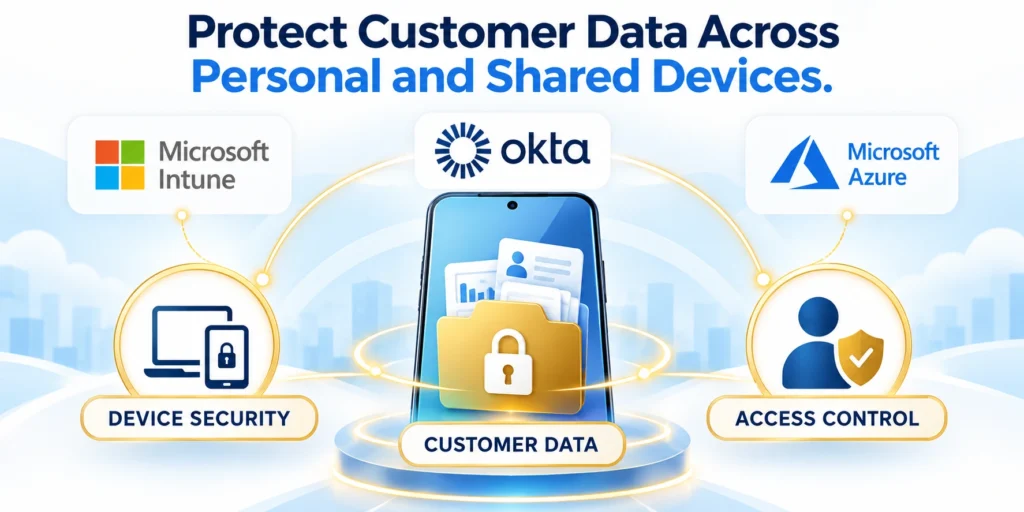
Field devices can be misplaced, shared, or used on public networks. Security must cover both the account and the data stored between visits.
Coordinate app controls with the organization’s identity, device-management, and incident-response policies. Do not rely on a hidden menu as the only safeguard.
Use access controls that match the job
Define the owner, evidence, decision boundary, and expected result for use access controls that match the job in field sales mobile application design.
Protect customer data through these controls:
- Require approved sign-in and apply the organization’s session policy.
- Limit records and actions to the user’s territory, role, and assigned work.
- Protect local caches and remove access when a device or account is revoked.
- Provide a safe sign-out and account-switch path for shared devices.
- Log sensitive actions without collecting unrelated personal activity.
Test use access controls that match the job with representative customers, workflows, exceptions, and operating conditions before expanding the decision.
Minimize exposure when the phone is visible
Keep confidential customer details out of lock-screen notifications. Use role-aware screens and mask sensitive fields when the representative does not need them for the current task.
Plan what happens after a lost device, role change, or employee departure. Test account revocation, cached-data retention, and support escalation before the app reaches every team.
Prepare a compromised-device response
Define reporting, token revocation, session invalidation, remote management, customer impact review, and evidence preservation for lost, stolen, rooted, or unexpectedly reassigned devices.
Test the response with managed and personal-device scenarios. Security teams should know which controls exist without assuming every platform supports identical remote actions.
Connect the App to CRM and Back-Office Systems Deliberately

The mobile interface should not become a second source of truth for customer ownership, product availability, or order status.
Document which system owns each record, who may change it, and how a mobile edit reaches the system that other teams use.
Define ownership before building the connector
For each object, document its identifier, authoritative system, permitted changes, sync direction, error owner, and recovery path. Resolve duplicate or conflicting records on the server when possible.
Salesforce documents separate mobile caching and offline-edit capabilities in its Salesforce mobile offline guide. Dynamics 365 also uses administrator-associated offline profiles for supported mobile data.
Verify platform-specific offline limits
Test verify platform-specific offline limits with representative customers, workflows, exceptions, and operating conditions before expanding the decision.
For a Dynamics 365 deployment, confirm the supported actions and profile scope in Microsoft’s mobile offline documentation before promising that a field or workflow works offline.
Test failure paths with realistic records
Exercise these integration failure scenarios:
- Expire a session during a visit update and confirm the draft remains recoverable.
- Submit the same queued action twice and confirm it creates one business record.
- Change an account assignment offline and verify the access response after reconnecting.
- Return an API validation error and show the rep what can be fixed.
- Test a partial order failure without discarding unrelated saved work.
Test test failure paths with realistic records with representative customers, workflows, exceptions, and operating conditions before expanding the decision.
Keep credentials on trusted server components rather than embedding privileged secrets in the mobile app. Apply rate limits, audit logs, and least-privilege access to integration endpoints.
Verify the connector before a field pilot
Define the owner, evidence, decision boundary, and expected result for verify the connector before a field pilot in field sales mobile application design.
Validate the integration through these steps:
- Create a test account with representative permissions, not administrator access.
- Submit one visit update online and confirm the owning system records it once.
- Repeat with connectivity disabled, then reconnect and check status, timestamps, and duplicate handling.
- Revoke access and confirm the app stops displaying protected records.
Test verify the connector before a field pilot with representative customers, workflows, exceptions, and operating conditions before expanding the decision.
Pilot the Experience With Representatives and Managers

A field pilot tests whether the app fits real visits and device constraints. Include those workflows in the custom app development scope.
Measure these field pilot outcomes together:
- Visit completion
- Follow-up time
- Order accuracy
- Sync backlog
- User feedback
Start with one sales motion or territory and include representatives, managers, and operations staff. Agree on baseline measures before changing the workflow.
Measure work outcomes, not screen activity alone
Define the owner, evidence, decision boundary, and expected result for measure work outcomes, not screen activity alone in field sales mobile application design.
Test measure work outcomes, not screen activity alone with representative customers, workflows, exceptions, and operating conditions before expanding the decision.
| Measure | What to compare | Useful question |
|---|---|---|
| Visit completion | Scheduled versus recorded outcomes | Can the team explain missed or duplicated visits? |
| Follow-up time | Customer commitment to assigned next action | Does ownership become clearer and faster? |
| Order accuracy | Mobile orders versus approved records | Where do errors enter the workflow? |
| Sync backlog | Pending changes by age and failure type | Can representatives recover without support? |
| Adoption and feedback | Representative interviews plus usage patterns | Which task still requires a workaround? |
Set expansion and pause criteria
Define what must be true before expanding: critical tasks complete reliably, customer records stay accurate, access controls work, and unresolved sync errors have an owner.
Pause rollout when data loss, duplicate orders, permission exposure, or repeated failed submissions appear. Fix the cause and retest the affected workflow before adding more users.
Use a staged rollout plan
Test use a staged rollout plan with representative customers, workflows, exceptions, and operating conditions before expanding the decision.
Use a phased mobile app rollout strategy to plan cohorts, guardrails, and pause decisions as the pilot expands.
Govern Device Enrollment, Updates, and Retirement
A field sales application remains secure only when device enrollment, updates, support, reassignment, loss, and retirement follow owned processes. Application controls cannot compensate for unmanaged devices indefinitely.
Inventory supported operating systems, application versions, device ownership models, encryption, authentication, and remote response capabilities. Define which conditions block access or require remediation.
Enroll and assign devices deliberately
Bind the approved user, device, tenant, territory, and application version through supported identity and management controls. Shared devices need explicit account-switch and sign-out behavior.
Verify these device lifecycle controls:
- Approved enrollment
- Current assignment
- Supported version
- Protected storage
- Remote response
Keep offline data proportional to the field workflow. Remove or invalidate protected records when assignment, account status, territory, or device ownership changes.
Retire access without losing business records
Synchronize recoverable work before planned reassignment or retirement. Preserve authoritative CRM records while removing local tokens, caches, credentials, and user-specific preferences.
Test lost, stolen, revoked, replaced, and unsupported devices. Representatives and support teams need a documented path that protects customers without silently discarding valid field work.
Coordinate application support and enforcement
Publish supported versions, update deadlines, known limitations, and escalation paths before blocking older clients. Representatives need time to synchronize work and resolve device constraints.
Separate optional improvements from security or compatibility requirements. Forced updates should have a documented reason, recovery path, and support coverage for interrupted field work.
Measure lifecycle health
Track version adoption, failed updates, revoked devices, stale tokens, local storage age, synchronization backlog, and support requests by platform and ownership model.
Use trends to improve rollout timing, device standards, training, and retirement. A single installation count cannot prove that field devices remain secure or operationally ready.
Conclusion

A useful field sales application reduces uncertainty around the next customer action. It preserves work when connectivity fails and keeps authoritative systems, ownership, and access understandable.
Design from representative visits, exceptions, roles, devices, and back-office dependencies. Avoid copying the desktop CRM into a smaller screen without changing the workflow.
Make the next action recoverable
Show account context, visit state, pending synchronization, validation errors, conflicts, and assigned follow-up. Representatives should know what succeeded, what remains local, and who owns recovery.
Use these final field workflow checks:
- Clear visit state
- Offline draft recovery
- Owned follow-up
- Secure customer access
- Visible sync outcome
Keep a durable task in the application or system of record. Notifications, temporary screens, and network responses should not become the only evidence that work exists.
Integrate through explicit ownership
Define authoritative fields, identifiers, validation rules, duplicate handling, retries, conflict resolution, timestamps, and support ownership across CRM, orders, inventory, identity, and territory systems.
Exercise online, offline, expired-session, reassignment, duplicate, partial-failure, and permission scenarios. Preserve valid work while denying actions that no longer match current access.
Scale from field and operational evidence
Pilot with representatives, managers, support, security, and integration owners. Compare task completion, follow-up time, order accuracy, sync backlog, adoption, and qualitative workarounds.
The strongest application remains usable outdoors, under weak connectivity, and during change. It earns adoption by protecting customer data while helping teams complete accountable work.
FAQ
These answers clarify offline work, CRM synchronization, shared devices, permissions, conflict handling, pilots, and the lifecycle controls required for reliable field sales applications.
What should a field-sales app show first?
Show the next assigned customer action, appointment details, relevant account context, and a clear way to record the outcome or follow-up.
Should a field-sales app work offline?
Support offline access for tasks that must continue without connectivity, such as viewing assigned visits or saving notes. Define which records are cached and how pending changes reconcile.
How can a mobile sales app avoid duplicate orders?
Give each queued submission a stable identifier, show pending status, and make server-side retries idempotent so a reconnect does not create another order.
Should the app track a representative’s location?
Only request location for a defined task, explain when it is used, and follow the organization’s privacy policy. Do not assume continuous tracking is necessary.
Which metrics show whether the app is helping?
Compare visit completion, follow-up time, order accuracy, sync failures, and representative feedback. Screen opens alone do not prove better customer or business outcomes.
For the broader framework, read Enterprise Mobile App Development: Cross-Platform Strategy.
How much data should be available offline?
Provide the minimum records and fields needed for approved tasks. Limit scope by role, territory, recency, sensitivity, storage, and synchronization cost.
How should an app show synchronization status?
Distinguish saved locally, queued, syncing, complete, conflicted, and failed. Give the user a recovery path without exposing unnecessary technical detail.
Can field apps support order approval?
Yes, when price, inventory, authority, authorization, duplicate prevention, status, and recovery are explicit and tested under realistic conditions.
Who owns offline data conflicts?
Assign ownership by data domain and business process. Route ambiguous cases to a steward or manager with enough context to decide.
How should a team pilot a field-sales app?
Choose representative roles, territories, devices, connectivity, and workflows. Set expansion and pause criteria before collecting pilot evidence.






Leave a Reply