


Understand what the integration does and what it does not

A Sales Navigator CRM integration can place professional context beside CRM records, and eligible plans can sync selected data between the two systems.
That does not mean every integration offers the same features. Separate embedded profiles, CRM Sync, activity writeback, and CRM-native actions before choosing a setup.
Separate the integration layers
An embedded profile lets a seller view relevant LinkedIn information from a CRM record. It reduces context switching but does not itself synchronize every CRM field.
CRM Sync can move selected account, contact, or lead information between Sales Navigator and a supported CRM, subject to license and configuration.
Define each capability
Activity writeback can record selected Sales Navigator activities as CRM activities. Decide which events matter and which should remain private or outside the CRM.
A native CRM integration and a LinkedIn-installed package can expose different components, settings, and administrative controls. Do not assume they are interchangeable.
Check which features are available
LinkedIn lists Salesforce, HubSpot, Microsoft Dynamics, and Oracle Sales among partners with CRM Sync and embedded experiences, while other partners have narrower capabilities.
Confirm the exact LinkedIn subscription, CRM edition, app package, permissions, and supported features for your tenant before budgeting or promising a rollout.
Choose an outcome
A user who can view a profile may not have permission to sync records or write activities. Treat viewing and writing as separate capabilities.
Define the integration outcome first: reduce research time, improve record context, support relationship mapping, or make approved activities visible to managers.
Use these actions to choose an outcome:
Embedded profile: display relevant Sales Navigator context in the CRM.
CRM Sync: transfer selected data under defined field, account, and license rules.
Activity writeback: record selected actions in the CRM when enabled and appropriate.
Check licenses, editions, and administrator prerequisites
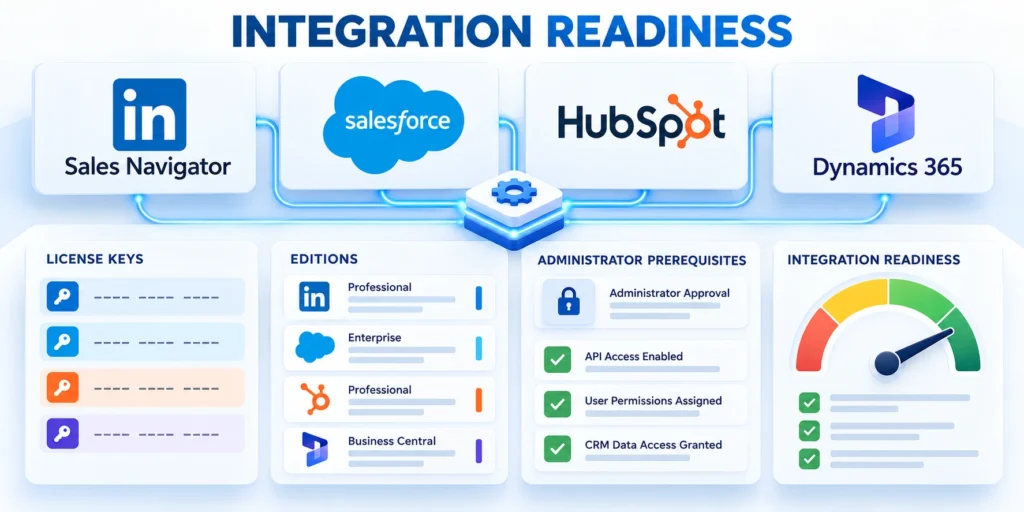
Start with a capability matrix for each CRM and Sales Navigator plan. The matrix prevents teams from designing around a feature their license cannot use.
LinkedIn says CRM Sync and full embedded experiences are available to Sales Navigator Advanced Plus users; Salesforce documents its own license and edition requirements.
Confirm the tenant before installation
Record the CRM product, edition, hosting environment, sandbox availability, and whether the organization uses a native integration or LinkedIn’s CRM app package.
Confirm each Sales Navigator seat type and whether the organization has Advanced Plus or another plan that includes the specific sync capability.
Inventory technical requirements
Identify the CRM system administrator, LinkedIn Sales Navigator admin, security reviewer, and business owner who will approve data flows.
Check whether the CRM is already connected to a different Sales Navigator configuration. Multiple packages or duplicate connections can create confusing records and support paths.
Confirm entitlement
List the required access: package installation, connected-app authorization, page-layout changes, field visibility, record editing, and workflow configuration.
Review network, single sign-on, identity matching, and provisioning with the CRM and identity administrators before approving the CRM integration scope.
Prepare a safe test
If a vendor plan or feature varies by region, edition, or contract, confirm availability in the organization’s own admin console before implementation.
Plan a sandbox or controlled test account. Do not use broad production access simply because it makes the first setup appear faster.
Use these actions to prepare a safe test:
Write down feature, license, role, and environment prerequisites before requesting access.
Choose a mixed admin-seller pilot group, limiting initial write privileges to the minimum required.
- Confirm sandbox access before enabling production synchronization.
Prepare CRM records and relationship data
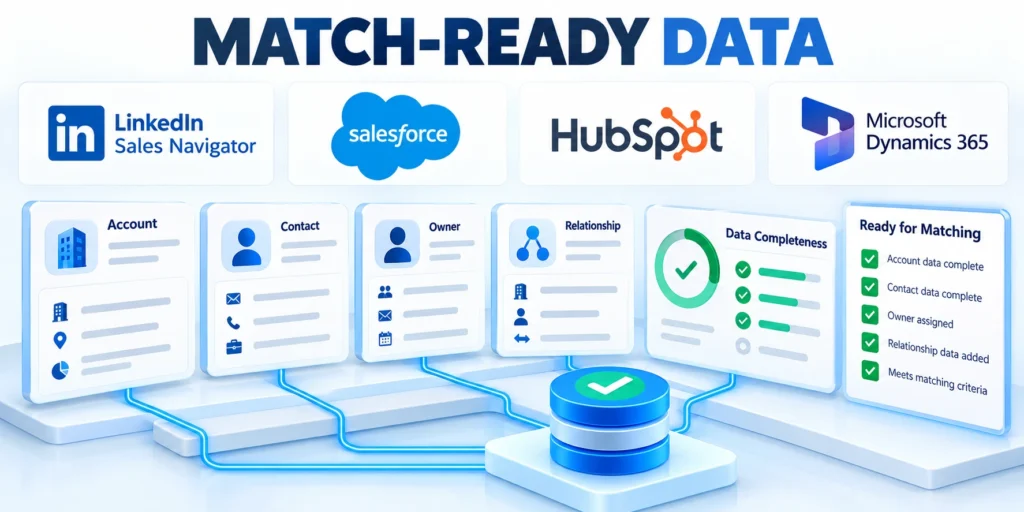
Integration quality depends on the CRM records it can match. Review data structure and identity rules before syncing so Sales Navigator does not amplify duplicates.
Agree which system owns each field, which records are in scope, and how a company, contact, lead, and opportunity relate to one another.
Define matching and ownership
Use stable identifiers and normalized company names, domains, email addresses, and CRM IDs where the integration supports them.
Decide how subsidiaries, parent companies, regional accounts, duplicate contacts, and contacts who change employers should be represented.
Set source-of-truth rules
Separate CRM account ownership from relationship strength. A connection signal can inform research, but it does not automatically make someone the account owner or buyer.
Document the source of truth for company name, title, email, phone, account ownership, and engagement history before enabling writeback.
Test record matching
Limit syncing to records that serve a defined selling or service purpose. A broader data transfer increases duplicate and governance risk without guaranteeing better relationships.
Test matching on difficult examples: common company names, subsidiaries, shared email domains, changed jobs, and records with missing identifiers.
Document corrections
Create a process for duplicate resolution and corrections. Make clear whether a correction is made in the CRM, Sales Navigator, or both.
If an integration writes a value back, determine whether it overwrites existing data, fills blanks only, or stores a separate LinkedIn-derived field.
Use these actions to document corrections:
Maintain a field map covering CRM field, LinkedIn source, direction, overwrite rule, owner, and purpose.
For each synchronized record type, document one matching example and one edge case before piloting.
- Resolve duplicate companies and contacts before testing writeback.
Set up the Salesforce native integration
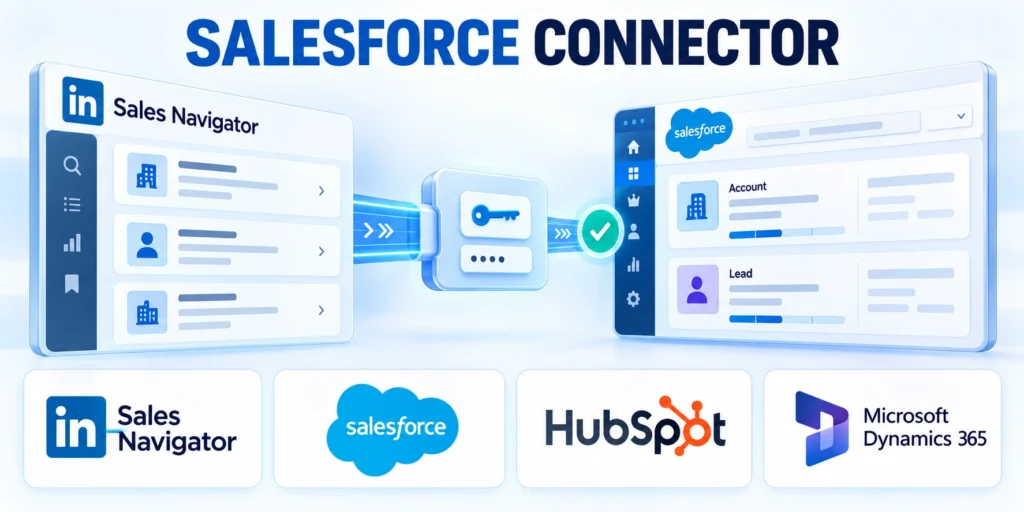
Salesforce documents a native LinkedIn Sales Navigator setup that turns on the integration and adds Sales Navigator components to relevant record pages.
The exact available controls depend on Salesforce edition, LinkedIn license, and the organization’s page configuration, so follow the current Salesforce and LinkedIn admin guidance.
Configure in a controlled sequence
In Salesforce Setup, search for LinkedIn Sales Navigator and open the integration settings. Review the Salesforce edition and LinkedIn license prerequisites first.
On the LinkedIn Sales Navigator Integration tab, enable the native integration for the intended Salesforce environment.
Enable the native integration
Add the Sales Navigator components to the Lead, Contact, Account, or Opportunity pages where sellers need them. Avoid adding components to every page by default.
For customized page layouts, verify the relevant InMail and connection request actions are present. A default-layout setup may not update custom layouts.
Place components and actions
If CRM Sync is part of the approved design, use the LinkedIn settings path to configure it separately from the embedded profile.
Review each permission set and profile. Confirm the user can see the required CRM object and fields without gaining unrelated record access.
Test standard-user access
Publish the page changes in a sandbox first, then test with an admin and a standard seller profile to catch visibility differences.
Salesforce’s official setup guide describes the Setup search path, integration toggle, page components, and optional CRM Sync. Use the guide for your current org edition.
Use these actions to test standard-user access:
Salesforce Setup → search “LinkedIn Sales Navigator” → LinkedIn Sales Navigator → Integration tab → enable the integration.
Add components and actions to Lightning pages and custom layouts used by the pilot team.
Test visibility, profile matching, and any approved sync direction before expanding access.
Choose the right connection path for other CRMs
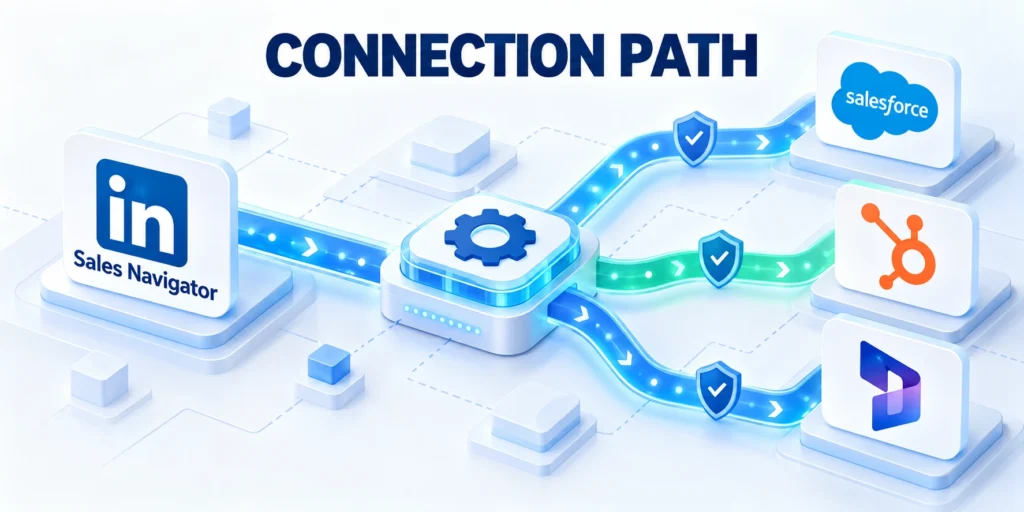
For HubSpot, Microsoft Dynamics, and Oracle Sales, LinkedIn identifies CRM Sync and embedded experiences as supported partner capabilities, but setup screens are not identical.
Verify the partner package, account tier, supported object types, sync direction, and installation instructions for the exact CRM and subscription in use.
Avoid treating partner support as feature parity
Start from LinkedIn’s integration documentation and the CRM vendor’s own app listing or admin guide. Confirm the package publisher and supported versions.
Check whether the CRM app is installed from the vendor marketplace, provisioned by a partner, or enabled through a native connector.
Verify package support
Document which objects are supported. A connector may support contacts and companies but not custom onboarding projects or every activity type.
Review sync frequency, matching behavior, duplicate handling, field mapping, and conflict resolution before connecting production records.
Configure object mappings
Use a small test set that includes a company, contact, and a lead where supported. Verify both the visible profile and any writeback behavior.
Do not copy Salesforce menu paths into HubSpot or Dynamics instructions. Menu labels and permissions differ, and features may depend on separate subscriptions.
Avoid unsupported shortcuts
If a feature is unavailable, choose a documented, supported path or leave it disabled. Do not substitute a third-party export or scrape without a reviewed data policy.
Record the CRM vendor’s support route and package version with the integration owner so later upgrades can be diagnosed.
Key considerations for avoid unsupported shortcuts include:
Compare native and marketplace options for supported records, direction, writeback, permissions, and vendor support.
Treat every CRM as a separate implementation and retest after major package or platform changes.
- Verify package support ownership and incident escalation terms.
Govern CRM Sync and activity writeback
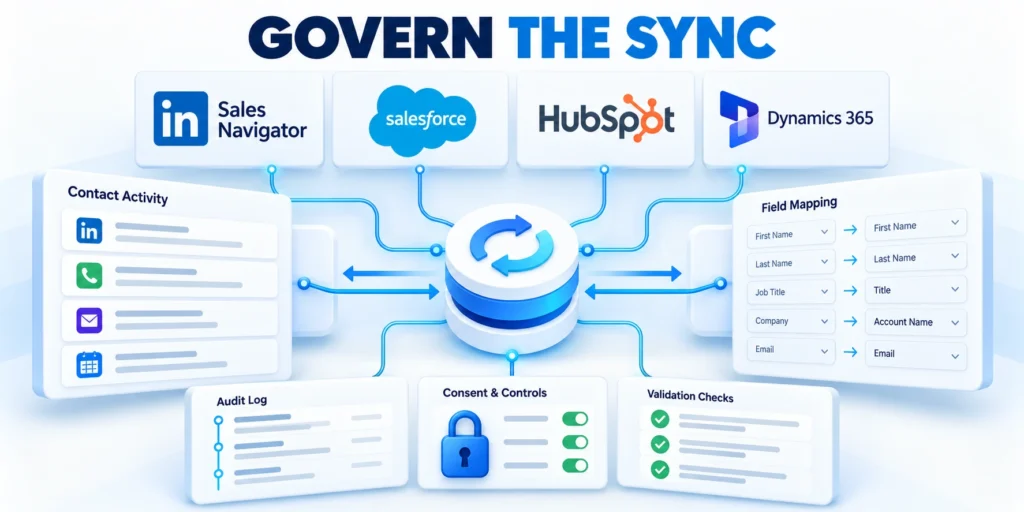
Sync and writeback can help sellers, but they change where relationship information is stored and who may see it.
Before enabling them, approve specific fields and activities, document direction and retention, and define how users correct or remove inaccurate information.
Limit transfer to an approved purpose
Choose whether the CRM receives LinkedIn-derived details, Sales Navigator activities, or both. These are separate decisions with different effects.
Set a field-level policy: source, direction, frequency, overwrite behavior, retention, and contact for corrections.
Approve field-level transfers
Define which activities are appropriate to save. Avoid writing back every profile view or private research action when the business does not need it.
Assess applicable privacy, employment, customer-contract, and data-retention obligations with the organization’s responsible legal or privacy team.
Control writeback
Explain to sellers what information appears in CRM, who can view it, and how to report a wrong match or an outdated detail.
Use least privilege. Separate package installation rights from routine seller use and restrict configuration to trained administrators.
Plan correction and retention
Test revocation and offboarding. Confirm a departed user cannot retain access and determine what happens to records previously synced.
Keep a change log of field mappings, permissions, sync rules, and decision approvals; reassess it when either platform changes.
Use these actions to plan correction and retention:
Enable only the data flow that supports a defined selling outcome.
Keep human review for incorrect matches, sensitive data, and activity that should remain unrecorded.
- Audit synchronized fields after permission or schema changes.
Roll out to sellers and measure adoption
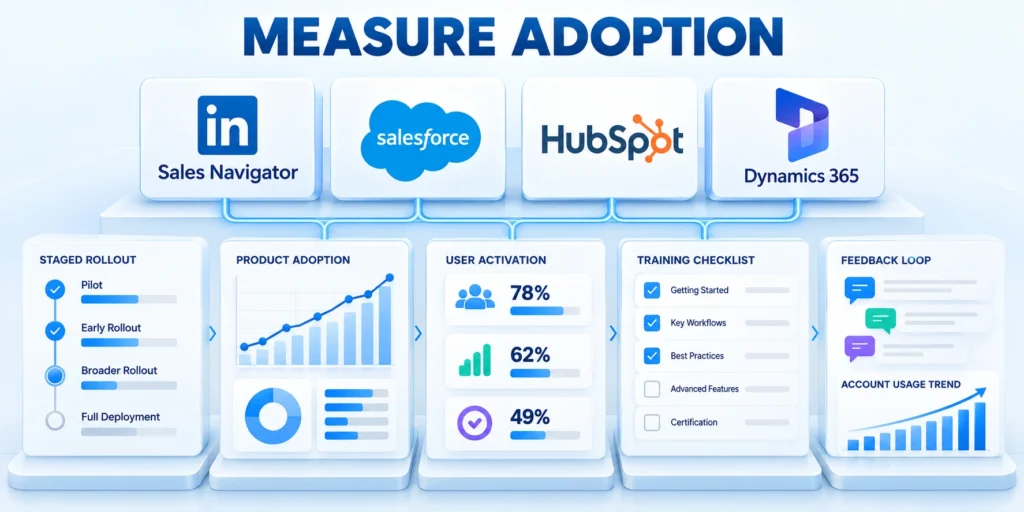
A technically successful connection may still fail if sellers cannot find it, trust the match, or understand when to use it.
Pilot in a limited team, measure practical adoption, and gather feedback before making the integration part of the default sales process.
Make the pilot observable
Choose a cohort with a clear use case, such as account planning or preparing for a customer meeting, rather than enabling the feature without a workflow.
Train sellers on where the profile appears, which signals are reliable, how to correct mismatches, and what information should not be copied.
Train a small cohort
Track eligible users, active use, profile views where available, CRM record coverage, duplicate rates, writeback completeness, and reported errors.
Pair activity metrics with business outcomes carefully. Faster preparation or improved relationship coverage may be useful signals, but do not claim they caused revenue growth without evidence.
Define success criteria
Survey a small pilot group about usefulness, relevance, workflow friction, and trust. Make feedback actionable and assign owners to fixes.
Review usage by role and segment. Low use may reflect access or page-layout issues rather than lack of seller interest.
Expand deliberately
Define a success threshold before launch and a decision date. Expand, adjust, or pause the rollout based on measured evidence.
Keep an escalation route for admins and sellers so data mismatches and missing permissions are fixed before frustration becomes a workaround.
Key considerations for expand deliberately include:
Pilot: verify access, matching, page placement, sync, and writeback with a small user group.
Evaluate: compare observed usage and error rates with the predefined success criteria.
Scale: expand only after fixing material issues and confirming ownership of ongoing support.
Use this scorecard to evaluate pilot evidence consistently.
| Signal | Meaning | Owner action |
|---|---|---|
| Eligible user access | Licensed users can open features | Resolve access gaps |
| Record match quality | Profiles map to intended records | Correct matching rules |
| Sync exception rate | Transfers fail or need review | Assign exception owners |
| Seller workflow usage | Users apply approved features | Improve training or scope |
Troubleshoot matching, permissions, and sync errors

When a profile is missing or a sync looks wrong, diagnose the layer that failed before changing permissions or reinstalling packages.
Separate authentication, user entitlement, page placement, record matching, field access, and writeback status; each has a different owner and remedy.
Use a repeatable diagnostic path
Confirm that the user has the required Sales Navigator seat and that the CRM integration is enabled for the correct environment.
Check whether the component is on the user’s actual record page or custom layout. An integration can be enabled while a component remains invisible.
Check each integration layer
Verify the CRM record’s identifiers and matching fields. Compare a known-good contact with one that fails before broadening matching rules.
Check user permissions for the object, required fields, package, and page. Avoid granting administrator access as a diagnostic shortcut.
Diagnose the failure
Review sync and activity history where available. Identify the direction, timestamp, source value, and conflict behavior for the affected record.
Test a single changed record and wait for the documented sync interval. Repeating actions quickly can create duplicates or obscure the original cause.
Retest the fix
Capture package version, CRM edition, user role, record type, and a sanitized example before contacting vendor support.
After a fix, rerun the original failing case and at least one negative case to confirm that access has not become too broad.
Key considerations for retest the fix include:
Missing profile: verify entitlement, page placement, record match, and permissions in that order.
Wrong field value: inspect field mapping, overwrite policy, source system, and sync timestamp.
Unexpected activity: disable the specific writeback path while reviewing scope and user expectations.
Make the integration a governed sales capability
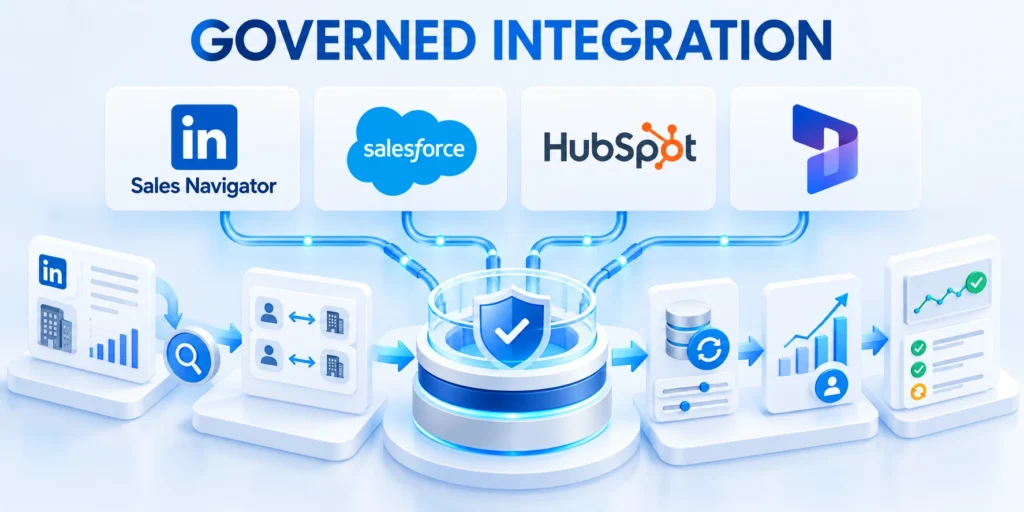
Sales Navigator and CRM integration can bring relationship context closer to seller workflows, but the value depends on fit, data quality, and adoption.
Treat it as a governed capability: select the right connector, limit data flows, test with actual roles, and review results before scaling.
A practical implementation checklist
Confirm the Sales Navigator plan, CRM edition, package, and feature eligibility for the specific organization.
Decide whether the use case needs embedded profiles, CRM Sync, activity writeback, or a limited combination.
Confirm the architecture
Map records and fields, state system ownership, and test matching on duplicates, subsidiaries, and changed contacts.
Install or enable the documented integration in a sandbox or controlled environment, then test components and permissions with representative users.
Pilot the data flow
Approve sync scope and activity writeback separately. Provide clear user guidance and a correction path.
Measure usage, matching quality, exceptions, and seller feedback against a predefined pilot threshold.
Maintain governance
For adjacent CRM platform selection context, compare the options for B2B technology and services.
Read the HubSpot versus Salesforce CRM comparison.
Keep record quality and controls in scope
Clean CRM data reduces matching problems; keep historical context when correcting records.
Read how to clean CRM data without losing historical context.
Preserve business and data reliability
The integration should make relationship work easier without weakening data ownership, privacy, or CRM reliability.
Key considerations for preserve business and data reliability include:
Pilot one documented use case; expand only when results and access controls are sound.
Assign a long-term owner for licensing, configuration, support, and review of data flows.
- Measure adoption and data quality after each rollout stage.
Connect the integration to the RevOps operating model
For cross-functional ownership and measurement, read our RevOps alignment playbook.
Use that operating model to assign decisions for data quality, seller adoption, exception handling, and the evidence required before expanding integration scope.
Conclusion

Sales Navigator CRM integration becomes valuable when relationship context supports a defined seller workflow without weakening record ownership, privacy, or data reliability.
The strongest implementation begins with one bounded use case, verified eligibility, representative records, explicit permissions, and an accountable owner for every data flow.
Turn integration features into governed capability
Separate embedded context, record synchronization, and activity writeback. Approve each capability independently because they create different data, access, retention, and support obligations.
Test the actual CRM edition, Sales Navigator plan, objects, fields, roles, and page layouts. Documentation cannot replace evidence from the configured tenant.
Confirm these controls before expanding the integration:
- Verify licenses and supported connector capabilities.
- Document record ownership and matching rules.
- Approve synchronization and writeback separately.
- Assign owners for exceptions and corrections.
Measure access, match quality, sync exceptions, useful seller adoption, and the intended commercial outcome. Usage alone does not prove that the integration improves decisions.
Expand only when representative users can explain the workflow, correct bad matches, identify data ownership, and obtain support without bypassing established CRM controls.
Maintain reliable data and operating ownership
Review the integration whenever licenses, packages, CRM schemas, permissions, territories, or seller responsibilities change. Operational drift can silently invalidate an earlier configuration.
Keep configuration decisions, test evidence, known limitations, and exception procedures together. Shared documentation shortens diagnosis and prevents unsupported assumptions from becoming standard practice.
Record these decisions after each integration review:
- Name the approved capability change.
- Document the supporting tenant evidence.
- Assign the implementation and support owners.
- Schedule the next data-quality review.
A governed integration should remain understandable, reversible, and measurable. These qualities protect CRM reliability while allowing sellers to use relationship context where it supports action.
The objective is disciplined coordination, not maximum data movement. Preserve only the flows that serve an approved purpose and can be explained to affected users.
FAQ
These answers clarify common Sales Navigator CRM integration decisions and operational boundaries.
What does Sales Navigator CRM integration do?
It can display LinkedIn context in CRM records and, for eligible plans and supported CRMs, synchronize selected records or activities.
Which CRM products are supported?
LinkedIn lists Salesforce, HubSpot, Microsoft Dynamics, and Oracle Sales for CRM Sync and embedded experiences; other partners may support fewer features.
Is CRM Sync included with every Sales Navigator plan?
No. LinkedIn documentation identifies Advanced Plus for CRM Sync and full embedded experiences. Confirm current license terms for your organization.
How do I enable Salesforce Sales Navigator?
Salesforce documents enabling the integration in Setup, then adding components and actions to the record pages and custom layouts sellers use.
Does an embedded profile automatically sync data?
No. Viewing an embedded profile and synchronizing CRM records or writing back activity are separate capabilities and settings.
Should activity writeback be enabled?
Only when the organization has an approved purpose for the activities, has reviewed visibility and retention, and can explain the behavior to users.
How can I prevent duplicate contacts?
Define matching identifiers, test subsidiaries and changed employers, limit sync scope, and establish a correction process before enabling writeback.
What should a pilot measure?
Track access, usage, match quality, duplicate rate, sync exceptions, seller feedback, and a predefined outcome tied to the intended workflow.
What should I check if a profile is missing?
Verify license, integration status, page placement, record identifiers, object access, and field permissions before reinstalling the package.
Can different CRM connectors behave differently?
Yes. Supported objects, sync direction, permissions, and setup vary by CRM package, edition, and subscription. Validate the exact supported configuration.






Leave a Reply