


What Zero Trust Means for a WordPress Site

A zero-trust WordPress security approach is an access strategy, not a plugin or single firewall setting. It removes automatic trust based on network location.
For a WordPress site, verify each user and integration, grant only needed permissions, and review access as people, devices, and workflows change.
Translate the principle into site controls
Start by listing protected resources: administrator accounts, publishing tools, customer records, backups, payment integrations, and deployment credentials.
For every access path, identify who or what is requesting access, what it needs, how identity is checked, and how access can be revoked.
Verify each request, regardless of location
A trusted office network alone is insufficient. A compromised laptop inside the office should not inherit broad access to WordPress administration.
Likewise, a known integration should not retain permanent credentials after its owner, purpose, or data access has changed.
Use these actions to verify each request regardless of location:
- Authenticate named people individually, preferably with multifactor authentication.
- Use separate accounts for people and integrations; avoid shared administrator logins.
- Assign the least powerful WordPress role that still supports each person’s actual duties.
- Use HTTPS and unique, revocable credentials for programmatic access.
- Log important changes and rehearse revocation and recovery.
The model comes from broader security architecture. NIST describes zero trust as protecting resources through explicit authentication and authorization, rather than trusting network position.
Inventory Identities, Data, and Request Paths

An access design cannot be reliable if the site owner does not know which accounts, services, and routes exist. Build a small inventory first.
Record owners and business purposes, then identify permissions, credential locations, data touched, and a safe method to disable each access path.
Build an access register
In WordPress, open Users → All Users and review each account’s username, display name, role, and last known owner with your team.
Do not treat a role name as proof that permissions are appropriate. Ask what work the person performs and whether administrator access is necessary.
Inventory service identities and credentials
Review integration accounts separately. WordPress Application Passwords are attached to user accounts, so identify the user and external system behind each credential.
Inventory routes used by people and services: wp-admin, wp-login.php, REST API endpoints, admin-ajax.php, XML-RPC if enabled, and host-level deployment interfaces.
Record the controls on each route
For each route, note whether it is public, authenticated, rate-limited, monitored, or restricted by an upstream service. Do not block routes before testing dependencies.
Capture these attributes for every access path:
- Route, method, environment, and business purpose.
- Human or service identity using the path.
- Required capability and accessible data.
- Authentication, network, and monitoring controls.
- Owner, review date, and revocation procedure.
Test each path with the actual workflow before restricting it. WordPress administration, REST, Ajax, scheduled jobs, and integrations may depend on shared routes.
Classify Data and Access Impact

Classify what each workflow can read, change, publish, export, delete, or configure before deciding which identity and control strength it requires.
A draft-only publishing integration should not receive capabilities for users, plugins, production settings, orders, backups, or files.
Map consequence by workflow
Evaluate business impact alongside technical capability. The same route can carry different risk when it exposes public drafts, customer records, payments, or administrator actions.
Use these questions when classifying access:
- Which records can the identity read?
- Which actions can it perform?
- Can it create another privileged identity?
- Can it export or delete protected data?
- What fails when access is revoked?
Document the narrowest capabilities and routes that support the approved workflow. Treat broad administrator access as an exception requiring explicit ownership and review.
Choose controls from impact and exposure
Combine data sensitivity, action consequence, exposure, credential lifetime, and recovery needs. Avoid selecting controls from job titles or network location alone.
| Access type | Primary risk | Required control |
|---|---|---|
| Draft publishing | Unauthorized content | Named account and review |
| Customer records | Privacy exposure | Least privilege and logs |
| Site configuration | Service disruption | MFA and rollback path |
| Automated API | Secret misuse | Dedicated revocable key |
Review the classification when data, plugins, vendors, routes, or business purpose changes. Earlier approval does not validate a materially different workflow.
Assign owners and review dates
Use an owner field and review date in the register. When a contractor leaves or an integration retires, the inventory should identify exactly what to revoke.
Keep the register restricted and free of live passwords, API keys, recovery codes, or tokens. Store secrets only in the approved credential system.
Verify People and Apply Least Privilege

Protect human accounts with individual identities and a second verification step. Shared accounts make it difficult to attribute actions or revoke one person’s access.
Begin with administrators and editors, test recovery, and reduce roles only after checking each user’s real publishing and maintenance responsibilities.
Enable a second factor safely
The WordPress.org Two-Factor plugin offers methods that each user can configure. Install and review it through Plugins → Add New Plugin, then test enrollment with a noncritical account.
After activation, open Users → Profile → Two-Factor Options. Choose an available method and follow the enrollment instructions shown by the installed plugin version.
Protect Enrollment and Recovery Codes
For another person, use Users → All Users → Edit and have that user complete enrollment. Avoid collecting their codes or configuring a personal authenticator on their behalf.
Save recovery codes somewhere controlled by the account owner. Test account recovery before enforcing a policy that could lock out every administrator.
Check version-specific settings
The plugin’s available methods and settings may change by release. Check the current plugin screen and document the chosen recovery path for the site’s administrators.
Verify enrollment, recovery, enforcement, and supported methods after updates. Do not rely on instructions written for a different plugin or release.
Reduce role permissions
Open Users → All Users, inspect each role, and ask the account owner what tasks they perform. Change roles only after confirming publishing, plugin, and settings needs.
Use Editor for content management when it supplies the required capabilities. Reserve Administrator for trusted operators who genuinely maintain site settings or extensions.
Review Named Accounts Regularly
Create separate named accounts instead of sharing credentials. Remove accounts that have no current owner or business purpose after confirming they are not required for recovery.
Review access after staff changes and on a regular schedule. Record who approved each elevated role and when that permission should be reviewed again.
Use these actions to apply the next control:
- List users and integrations with an owner and purpose.
- Confirm each account’s real duties with its owner.
- Lower unnecessary roles and remove unowned accounts after dependency checks.
- Require individual multifactor enrollment and test recovery.
- Recheck permissions after staff or workflow changes.
For the broader business threat model and defenses, see the site’s existing WordPress security protocol guide.
Secure API Credentials and Automated Access

Automated tools need credentials, but they should not borrow a person’s normal password or share one permanent secret across unrelated services.
WordPress Application Passwords support programmatic authentication over HTTPS and can be named, individually revoked, and replaced without changing the account password.
Create a dedicated application password
Use an account owned by the site’s responsible operator or integration team. Give it the least powerful role compatible with the integration’s documented tasks.
In WordPress, open Users → Profile and find Application Passwords. Enter a label that identifies one system, such as “CRM content sync – production,” then select Add New Application Password.
Store the Secret Outside WordPress
Copy the generated value once into an approved secret manager. WordPress displays it only at creation; do not paste it into tickets, source code, chat, or a public repository.
Configure the client to use HTTPS and the required WordPress authentication format. Application Passwords are for API access, not interactive sign-in to wp-admin.
Confirm the API workflow
Test the integration with a harmless read request or a draft-only action. Confirm its response, logged-in identity, and effective capabilities before enabling production writes.
curl --user 'integration-user:APPLICATION_PASSWORD' \
  https://example.com/wp-json/wp/v2/users/me
Use these actions to confirm the api workflow:
- Supply the placeholder secret through a protected runtime. Never place live credentials in shell history.
- Never run this example with an actual key in a shared terminal.
- Rotate the training credential immediately after completing the exercise.
Confirm the test identity, returned permissions, audit evidence, and expected failure after revocation before enabling production write operations.
Rotate and Revoke Automated Access
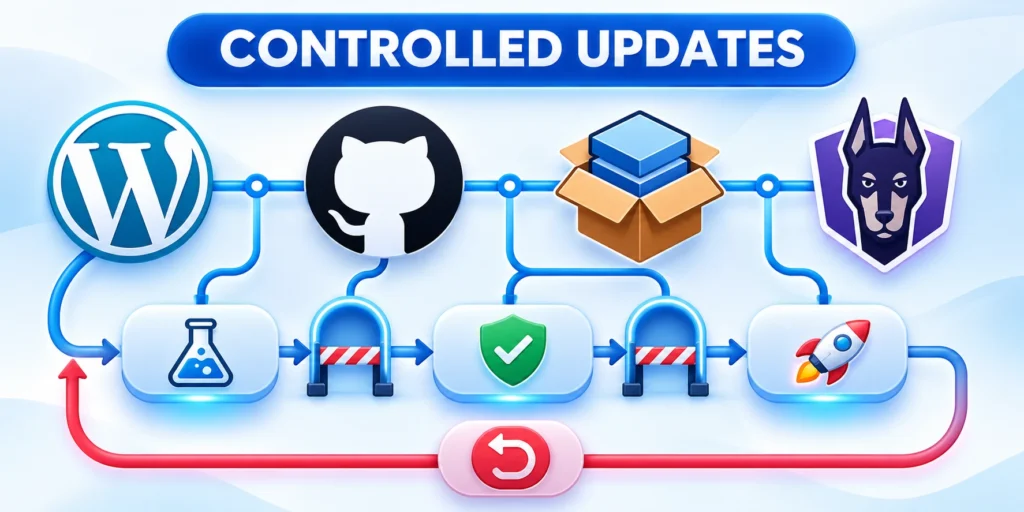
Create a replacement credential before rotating a production integration. Test the new secret, switch the client, then revoke only the superseded application password.
If exposure is suspected, revoke immediately, inspect recent activity, contain dependent access, and issue a replacement only after understanding the affected workflow.
Use one credential per integration
A unique label and secret let operators revoke one integration without interrupting unrelated services or changing the person’s interactive password.
Preserve these details for each credential:
- Integration name, environment, and business owner.
- WordPress identity and assigned capabilities.
- Secret location without recording its value.
- Creation, review, rotation, and expiration dates.
- Revocation and dependent workflow procedure.
Open Users → Profile → Application Passwords and revoke the entry matching the integration label. Verify that the old credential can no longer authenticate.
Rotate without creating an outage
Test the replacement through a harmless read or draft-only action, update the protected runtime, and observe the first production operation.
Revoke the old value after successful validation. Retain timestamps and the operator decision so later investigations can distinguish planned rotation from unauthorized access.
Control account lifecycle changes
Do not delete or downgrade an associated user until every credential, scheduled task, webhook, deployment, and recovery dependency tied to that account is known.
Transfer ownership, replace dependent credentials, test required workflows, then disable the identity. Record remaining access and the person accountable for final closure.
Layer Network Controls Without Breaking WordPress

Network controls can reduce exposure, but careless restrictions can break publishing, authentication, media uploads, or plugin features.
Apply changes at the hosting or edge layer in stages, with a tested allow path and rollback. Do not paste generic server rules into production blindly.
Map dependencies before restricting routes
Ask the host or security provider which layer enforces a rule: CDN, web application firewall, reverse proxy, web server, or WordPress plugin.
Document the exact route, method, user group, source, and business workflow affected. A restriction on wp-admin may also affect REST requests used by legitimate editors.
Avoid Broad Route Blocks
WordPress warns that hardening wp-admin can interfere with admin-ajax.php. Plugins and themes may also use REST API endpoints, so test actual site workflows.
Do not assume that all REST API traffic is malicious or that all access from a known IP is safe. Prefer narrowly scoped rules tied to a specific need.
Test a control before broad enforcement
Use staging or a temporary rule scoped to one test account or path. Confirm login, two-factor challenges, editor saves, media uploads, scheduled tasks, and required integrations.
Check logs for blocked legitimate requests. If the control breaks a workflow, remove or narrow the rule before expanding it to more users.
Preserve an Alternate Recovery Path
Coordinate source IP allowlists with the hosting provider. Cloud and home IPs can change, and a misplaced allowlist can lock out legitimate administrators.
Keep an alternate recovery route that does not depend on the control being changed. Document who can roll back the rule and how quickly they can do it.
Use network controls as one layer
A web application firewall can complement identity checks, but it does not replace account-level permissions, patching, backups, or credential revocation.
Combine these layers around each protected route:
- Named identity and least-privilege capability.
- Strong authentication and protected credentials.
- Narrow route, method, and source restrictions.
- Rate limits and meaningful monitoring.
- Tested recovery and rollback ownership.
Test the combined path because individually valid controls can still conflict. Preserve one approved recovery route while changing upstream restrictions.
Build a Testable Rollout and Recovery Plan

Roll out controls in small steps, beginning with privileged identities and one representative integration. Measure whether protections work without disrupting publishing.
Define an observable success condition and a rollback owner before each change. Keep the existing recovery route available until the new path is proven.
Use a staged change sequence
Apply these criteria to a staged change sequence:
- Back up the site and record current users, roles, integrations, routes, and security settings.
- Test on staging or a limited account; document the configuration and expected result.
- Verify login, recovery, editing, publishing, API calls, media handling, and required scheduled jobs.
- Review security and application logs for denied legitimate activity or unexpected access.
- Expand gradually, communicate the change, and retain a tested rollback procedure.
For multifactor authentication, success means each intended user can sign in with a second factor and can recover access through the documented method.
For a role reduction, success means the user can still complete assigned tasks while settings outside those duties remain unavailable.
Verify Each Control’s Success Condition
An application credential succeeds when the named integration performs its required action over HTTPS and cannot authenticate after revocation.
A network rule succeeds when approved people and services retain necessary workflows while the targeted unwanted traffic is blocked.
Define rollback and incident response
Before changing access, record the previous setting and the person authorized to restore it. Keep a current backup and confirm how to reach host support.
If administrators cannot sign in, first use the documented recovery route and host-level support. Avoid emergency edits to live files without a verified rollback.
Respond to Credential or Rule Failures
If a credential leaks, revoke that credential, rotate dependent secrets, review logs, and identify what data or actions it could reach.
If a restriction blocks WordPress operations, disable or narrow the specific rule and retest. Do not remove unrelated protections as a shortcut.
Close out temporary exceptions
Review the inventory after each rollout. Remove temporary exceptions when they are no longer needed and record the final state.
Verify the dependent workflow after removal, close temporary accounts or rules, and preserve the approval and test evidence with the access record.
Monitor identity and access behavior after rollout
A control is incomplete when nobody can observe its effect. Send authentication failures, privilege changes, credential events, and administrative actions to a protected review process.
Define expected behavior for administrators, editors, service identities, and vendors. Alert on meaningful deviations instead of treating every routine action as an incident.
Use these actions to monitor identity and access behavior after:
- Record consistent timestamps and identity details.
- Protect logs from unauthorized alteration.
- Assign review and escalation ownership.
- Retain evidence for the approved period.
Test alerts with controlled events. Confirm that the responsible team receives enough context to distinguish a failed login, a configuration error, and suspicious access.
Review denied requests for broken business workflows as well as attacks. A rule that silently blocks publishing, checkout, or recovery needs correction before broader enforcement.
Govern Expiring Access Exceptions
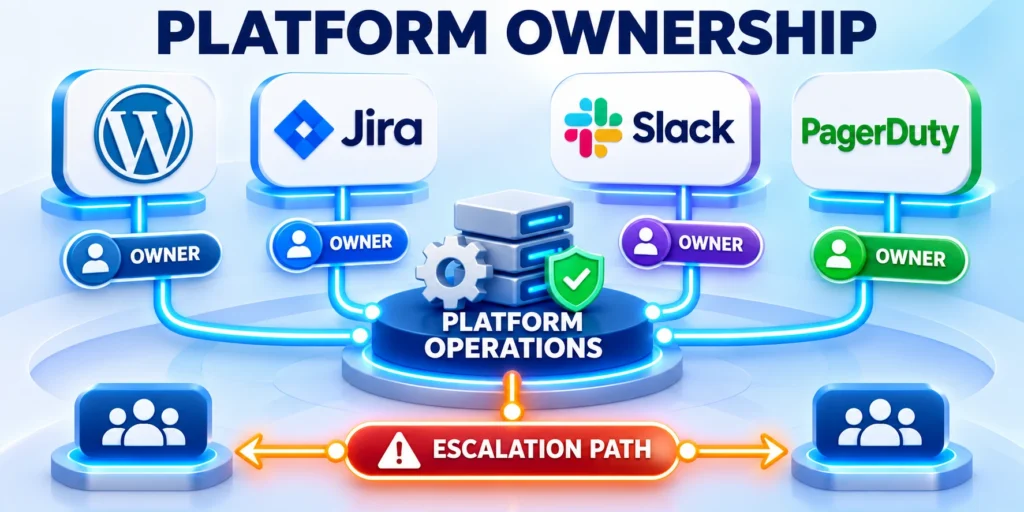
Some legacy workflows cannot meet the target control immediately. Document each exception with an owner, business reason, affected data, compensating controls, expiration date, and migration action.
Keep exceptions narrow. Limit the identity, capability, network path, environment, and duration instead of exempting an entire team or application from verification.
Key considerations for govern exceptions as expiring risk include:
- Name the accountable risk owner.
- State the exact access being allowed.
- Apply monitoring and compensating controls.
- Set a review and expiration date.
Revalidate an exception when the vendor, integration, hosting platform, or data classification changes. Earlier approval does not prove the same exposure remains acceptable.
Close the exception by removing the access and verifying the dependent workflow. Preserve the decision record so future teams do not recreate the same workaround.
Exercise recovery without bypassing accountability
Run a controlled recovery exercise for a locked administrator, revoked integration, or overly restrictive network rule. Use staging when production impact would be unacceptable.
Verify that responders can restore the required workflow through approved access, record their actions, and remove temporary privileges after the exercise.
Use these actions to exercise recovery without bypassing accountability:
- Trigger one realistic access failure.
- Follow the documented escalation path.
- Restore service with approved authority.
- Remove emergency access and review evidence.
The exercise should reveal missing contacts, inaccessible credentials, unclear ownership, or untested dependencies. Correct those gaps before relying on the procedure during an incident.
FAQ
These answers address common zero-trust decisions for WordPress identities, integrations, routes, and recovery.
Is zero trust a WordPress plugin?
No. It is a security approach. WordPress settings, user roles, authentication tools, hosting controls, and monitoring can implement parts of it.
Should every user be an administrator to avoid workflow problems?
No. Match each account to its actual duties, test those duties, and grant the least powerful role that supports them.
Are Application Passwords the same as normal passwords?
No. They are separate credentials for programmatic access, can be individually revoked, and should be used over HTTPS.
Can I block the entire REST API or wp-admin?
Usually that is too broad without dependency analysis. Editors, plugins, themes, and integrations may rely on those routes.
How often should access be reviewed?
Review it after staff, vendor, or integration changes and on a scheduled cadence appropriate to the site’s risk and operating model.
How should emergency administrator access work?
Use a protected break-glass account with strong authentication, restricted custody, immediate alerts, time-limited use, and mandatory review after activation.
What should happen when a vendor engagement ends?
Disable the vendor identity, revoke credentials, transfer ownership, review recent activity, remove exceptions, and confirm that business workflows continue without that access.
How can WordPress integrations follow least privilege?
Give each integration a dedicated identity, only required capabilities, limited network paths, protected credentials, observable activity, and a documented revocation procedure.
Should zero-trust controls be deployed all at once?
No. Prioritize the highest-risk access paths, test publishing and recovery, monitor results, and expand only after the earlier controls operate reliably.
Which logs matter for access reviews?
Review authentication, privilege changes, credential creation, administrative actions, API activity, network denials, and relevant hosting events with consistent timestamps.
Conclusion

A practical zero-trust rollout starts with named identities, narrow permissions, protected credentials, and a map of the site’s real access paths.
Test each control against publishing, integration, and recovery workflows, then revise access when people, systems, data, or business needs change.
Expand controls from proven results
The objective is justified, limited, observable, and reversible access rather than adding friction indiscriminately.
Begin with administrators and high-impact integrations, verify the result, and expand only after the first controls work reliably.
Keep the operating model explicit
Assign owners for identities, credentials, routes, monitoring, exceptions, recovery, and periodic review. Controls without ownership decay as workflows change.
Maintain these records after every material change:
- Identity, purpose, capabilities, accessible data, accountable owner, and business impact.
- Credential owner, storage, review, revocation, rotation schedule, and incident procedure.
- Required routes, methods, upstream controls, verified dependencies, and recovery behavior.
- Monitoring, escalation, evidence retention, alert ownership, and review cadence.
- Exception expiration, migration action, compensating controls, and final closure evidence.
- Recovery route, rollback authority, tested contact path, and restoration evidence.
Remove temporary access after testing or incidents and verify the dependent workflow. Preserve the decision record without storing live secrets.
Connect controls to platform architecture
Identity and route decisions must align with hosting, plugins, APIs, deployment, backups, monitoring, and business ownership across the platform.
For the broader system model, read our enterprise WordPress architecture guide.







Leave a Reply