


Why Import CRM Conversions into Google Ads

Offline CRM conversions connect an ad interaction to a later sales outcome. A form submission alone does not show whether sales found a real opportunity or won revenue.
Importing CRM milestones gives Google Ads a downstream signal, so reporting and bidding can reflect business outcomes more closely.
Define the milestones before connecting systems
Start with one decision the import should improve. Common examples include qualified lead, sales-accepted lead, opportunity created, or contract signed.
Choose a milestone that happens often enough to provide useful feedback and late enough to represent meaningful fit.
Use these actions to define the milestones before connecting systems:
- Qualified lead: sales confirms the record meets agreed fit and intent rules.
- Opportunity: an owner confirms a legitimate project, buying process, and next step.
- Converted lead: the prospect becomes a customer or reaches another defined revenue outcome.
Write the rule in the CRM. For example, require a target market, valid business contact, confirmed need, and an assigned sales owner.
Do not upload every status change as a separate primary conversion. Duplicate or premature signals can teach bidding to optimize for administrative activity.
Use a simple worked example
Imagine a campaign generates 100 leads. Sales accepts 24, creates 8 opportunities, and closes 2 contracts.
If the business wants more pipeline, import the qualified or opportunity milestone. If it has enough volume, test a later revenue event.
Separate diagnostics from bidding signals
Keep the web form conversion for early diagnostics if useful, but separate it from the CRM action used for value-based bidding.
Define which events inform reporting and which may guide optimization. Avoid allowing one lead to count repeatedly across several funnel milestones.
Create the Right Google Ads Conversion Action

For a new CRM import, Google currently recommends Enhanced Conversions for Leads through Data Manager over the legacy offline import.
The setup uses first-party lead details to improve matching and lets teams connect supported CRM or file sources inside Google Ads.
Create or reuse a lead conversion action
In Google Ads, open Goals, then Conversions, then Summary. Select Create conversion action, then choose Import.
Choose the import source for customer relationship management systems, files, or other data. Then select the option for importing events linked to advertising clicks, if available.
Follow this sequence to create or reuse a lead conversion:
- Choose the goal category that matches the milestone, such as qualified lead or converted lead.
- Name the action clearly, for example “CRM – Qualified Lead”.
- Choose whether the action is primary for bidding or secondary for observation.
- Set a value only when the business has a defensible value model.
- Save the action and confirm that it is enabled before mapping the CRM.
If an appropriate action already exists, reuse it instead of creating near-duplicates. Check its category, counting method, value, and primary status first.
Keep early-stage form fills secondary when the bidding strategy should prioritize qualified pipeline instead of raw volume.
Connect the data source in Data Manager
From the conversion setup, connect a supported CRM or data source. A direct connection and a third-party connector have different permissions and possible fees.
Review customer data terms and consent requirements with the people responsible for privacy before authorizing a connection.
Follow the current connector instructions
Google’s Data Manager setup guide shows the current path and connection choices; labels can change as the interface evolves.
Record the connector type, permissions, source owner, synchronization schedule, and support path. Recheck the live interface before changing a production connection.
Capture Click and Lead Identifiers Reliably

Attribution fails when the click identifier is lost between the landing page, form, and CRM record.
Capture the identifiers your chosen setup requires, preserve them with the lead, and import them with the actual CRM milestone.
Prepare the website and CRM fields
Confirm auto-tagging is enabled in Google Ads. It allows ad clicks to carry identifiers such as the Google Click ID, or GCLID.
Make sure redirects, consent tooling, and form providers do not strip required query parameters before the form captures them.
Use these actions to prepare the website and crm fields:
- Store the click identifier with the lead’s original source record; preserve its exact case.
- Capture a stable first-party identifier such as email when the enhanced setup requires it.
- Keep the CRM event timestamp, conversion name, unique record ID, value, and currency available.
- Record the relevant consent state and restrict access to customer data.
- Retain the campaign and landing-page context needed for troubleshooting.
Google recommends continuing to send available click identifiers, even when enhanced matching is configured, because they help tie events to specific ad clicks.
Normalize identifiers consistently. Do not lowercase a GCLID; treat it as case-sensitive and avoid trimming or rewriting its value.
Test one lead from click to CRM
Test one lead through these controlled steps:
- Test capture with a controlled URL and sample click ID; fabricated IDs cannot prove matching.
- Submit the lead form and check that the CRM record stores the identifier.
- Verify that the same record retains the source, timestamp, consent, and form details.
- Test a redirect and a returning visit if either can occur before submission.
- Remove test records from production reporting or mark them clearly as test data.
If the identifier disappears, inspect redirect rules, form integrations, consent behavior, and hidden-field mappings before changing campaign settings.
Repeat the test on representative devices and form paths. Preserve the expected and observed identifier values without exposing sensitive customer data.
Connect Your CRM and Map Conversion Fields
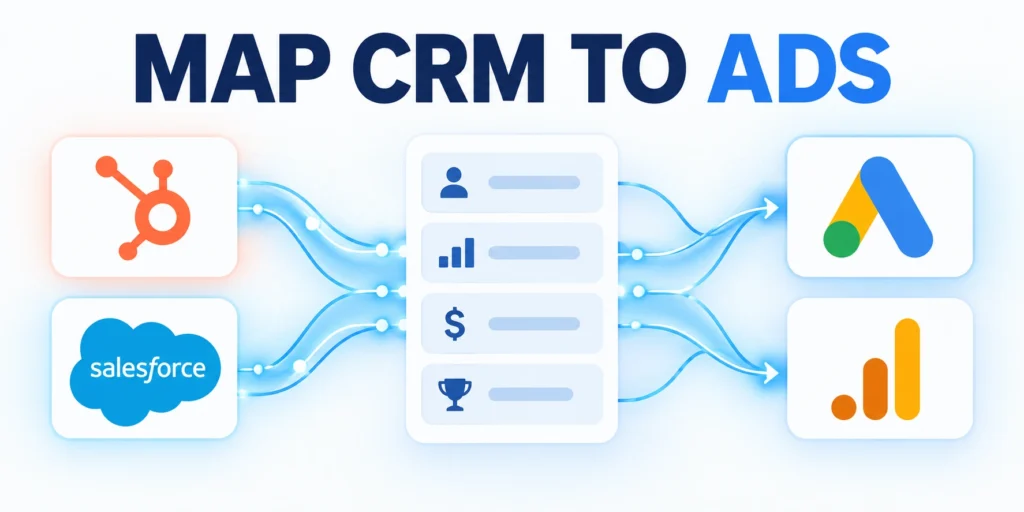
A connected source is not enough; field mapping must identify the right person, milestone, and event time.
Use a stable CRM event or stage-change record, rather than exporting a current status that may overwrite the lead’s history.
Map each field to one business meaning
Use these actions to map each field to one business:
- Identifier: map the click ID or supported first-party user data used by the connection.
- Conversion action: map a controlled milestone name, not free-text sales notes.
- Conversion time: map the time the milestone actually occurred.
- Value and currency: use consistent values and a valid currency code if values are sent.
- Order or event ID: use a unique ID to prevent duplicate imports and support adjustments.
- Consent: pass an accurate state through the approved connection method.
For example, a CRM stage called “SQL” may mean different things across teams. Map it only after the organization defines the exact qualifying conditions.
Use the actual transition timestamp. A nightly export timestamp can make old leads appear to have converted at the time of the file run.
Plan for import windows and data gaps
Import windows vary by source connector. Google documents different lookback behavior for CRM partners and file or database sources.
Check the documented window for the connector you use, and schedule the first import so older events are not silently missed.
Confirm the connector’s source-specific window
For HubSpot, use its Google Ads conversion event instructions. They explain lifecycle triggers, eligible contacts, consent choices, and synchronization timing.
Document the applicable source window and earliest eligible event. Monitor missed records separately from rejected or delayed rows during reconciliation.
Validate Imports and Diagnose Matching Errors

Do not judge the connection from a green status alone. Verify that representative CRM events appear under the intended conversion action.
Keep the first run small and reconcile imported records against the CRM before using the action for bidding.
Run a controlled reconciliation
Follow this sequence to run a controlled reconciliation:
- Select a small cohort with known CRM IDs and milestone dates.
- Compare the source count with the rows accepted, rejected, or still processing.
- Inspect diagnostics for missing identifiers, malformed timestamps, invalid values, and consent issues.
- Confirm that the conversion appears under the correct action and goal.
- Record the import date, cohort, source, and corrections for the next run.
Allow time for reporting to catch up. Google says imported conversion statistics may take several hours to appear.
Use conversion-time reporting when reconciling event dates. Standard conversion columns may attribute results to the original ad interaction date.
Prioritize reconciliation evidence
Compare representative CRM events with imported results before changing campaigns. Classify discrepancies by matching, validation, duplication, timing, or conversion-action mapping.
| Pattern | First check | Owner |
|---|---|---|
| No match | Identifier capture | Marketing operations |
| Rejected row | Required fields | Data owner |
| Duplicate event | Event identity | CRM operations |
| Late event | Import window | Analytics owner |
Use the table to route investigation, not to assume the cause. Preserve sample records, diagnostics, timestamps, and corrective evidence for each material discrepancy.
Check common failure patterns
Use these actions to check common failure patterns:
- No matches: verify auto-tagging, click ID capture, exact identifier mapping, and consent settings.
- Rejected rows: inspect required fields, timezone format, action status, and values.
- Duplicates: check event IDs, conversion names, and repeated stage-change exports.
- Late events: compare the CRM event date with the source-specific import window.
- Wrong action: confirm the imported milestone is mapped to the intended conversion goal.
Use stable event identifiers and fix duplicate feeds. Do not depend on platform deduplication to make CRM reconciliation understandable.
Check the current import window for your chosen source and action before backfilling CRM history. Do not assume old stage changes can be recovered.
Use Qualified Conversions to Improve Bidding

Once imports reconcile, use the CRM milestone to evaluate which campaigns create qualified demand rather than just cheap form fills.
Change bidding only after event volume, values, and delays are understood. A sparse or inconsistent signal can make optimization unstable.
Move from observation to bidding in stages
Follow this sequence to move from observation to bidding in:
- Keep the CRM action secondary while checking data quality and source coverage.
- Compare qualified-lead rates, opportunity creation, and cost by campaign or segment.
- Confirm that the milestone arrives frequently enough for the selected bidding strategy.
- Set one action as primary only when it represents the outcome the business wants.
- Review after a complete sales cycle, then change one material setting at a time.
For a simple example, compare two campaigns with similar spend. Campaign A has 40 forms and 4 qualified leads; Campaign B has 24 forms and 9 qualified leads.
Campaign A’s form cost may look better, but Campaign B produced more qualified leads. Validate cohort maturity before reallocating budget.
Use values only when they reflect business economics
If assigning values, start with documented expected value by milestone or actual revenue, not arbitrary scores that merely make one campaign look stronger.
For example, calculate an expected qualified-lead value from historical win rate and average gross profit, then revisit it when those inputs change.
Apply these criteria to values only when they reflect business:
- Define the calculation owner and source data.
- Keep currencies consistent across CRM records and imports.
- Separate expected values from realized revenue in reporting.
- Audit whether imported values match the CRM before enabling value-based bidding.
Track import coverage, match diagnostics, qualified-lead rate, opportunity rate, and revenue alongside cost. No single platform metric explains the whole funnel.
Use the Google Ads bidding guide for high-ticket services to connect reliable conversion signals with a broader bidding plan.
Define a Conversion Governance Model
Offline conversion tracking affects bidding, reporting, and sales decisions. Treat each imported event as a governed business definition, not a technical field that changes without review.
Name an owner for the event definition, CRM status mapping, data quality controls, and change approval. Sales operations, marketing operations, analytics, and privacy teams need one reference.
Use these actions to define a conversion governance model:
- Document the qualification rule behind every imported conversion.
- Record CRM fields, source systems, and transformation logic.
- Set an approval step for lifecycle-stage changes.
- Keep a version history for mappings and import schedules.
Reconcile advertising and CRM records regularly
Google Ads and the CRM will not always report identical totals. Timing, attribution windows, duplicate prevention, consent, offline delays, and identity matching can create legitimate differences.
Use a recurring reconciliation process before changing bids. Compare a defined date range, conversion name, identifier coverage, match status, and the CRM records behind the result.
Reconcile the systems through these repeatable steps:
- Export a sample of imported conversion rows.
- Match each row to its CRM lifecycle event.
- Check identifier availability and timestamp consistency.
- Separate rejected rows from delayed rows.
- Document every material variance and owner.
Assign change approval and review cadence
Require approval for conversion definitions, CRM mappings, value logic, import schedules, primary-action status, and bidding eligibility. Record the effective date and responsible owner.
Review the model on a fixed cadence and after material releases. Confirm that documentation, monitoring, reconciliation, and rollback evidence remain current.
Protect Measurement When the Sales Process Changes

New forms, routing rules, territories, or qualification stages can break an import quietly. Include conversion tracking in release checklists whenever a sales or marketing workflow changes across affected systems.
Test one controlled lead through the full journey after significant changes. Confirm that the click identifier survives, the CRM event is correctly classified, and the import appears on schedule.
Protect measurement through these release controls:
- Monitor identifier capture and missing-value rates.
- Alert on prolonged failures or unusual volume changes.
- Retain representative test evidence for every release.
- Review privacy and consent before adding fields.
Preserve historical comparability
Annotate when stages, forms, routing, identifiers, values, or ownership change. Avoid comparing cohorts whose definitions differ without explaining the boundary during every later cohort review.
Keep the former mapping and effective dates available for investigation. Rebuild baselines when a release materially changes who qualifies or which events import.
Preserve comparability through these release records:
- Previous and current stage definitions.
- Effective dates and responsible owners.
- Test identities and observed outcomes.
- Known gaps affecting historical comparisons.
Test every affected path
Run representative leads through each affected form, route, region, device, and connector. Verify identifiers, timestamps, consent, stage transitions, ownership, and imports before release.
Record failed paths as release issues and retest after correction. Do not resume bidding changes until the imported signal is stable across the intended population.
Decide When an Imported Action Is Ready for Bidding
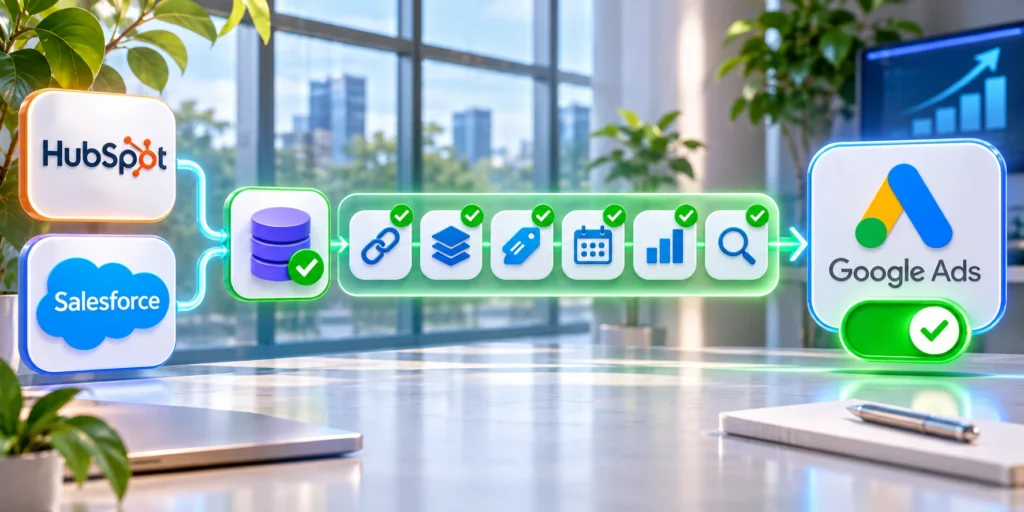
Begin with the CRM milestone as a secondary observation signal. Confirm that the definition, identifier coverage, import delay, match rate, and rejection rate remain stable.
Compare imported rows with the underlying CRM population. A clean upload can still represent only a biased subset if identifier capture varies by form, device, region, or campaign.
Confirm readiness through these evidence checks:
- Measure coverage by source and campaign.
- Separate delayed outcomes from rejected imports.
- Review duplicate and requalified records.
- Compare qualified volume with sales capacity.
- Confirm the conversion window fits the sales cycle.
Set a written promotion rule before making the action primary for bidding. Include minimum data quality, accepted lead volume, sales review, and rollback conditions.
Monitor lead quality after the bidding change. If volume rises while accepted opportunities decline, pause the optimization and inspect the conversion definition, campaign mix, and CRM routing.
Protect values and currency mappings
When importing conversion values, document the source field, currency, calculation, and update behavior. Do not send forecast revenue as closed revenue without a distinct event name.
Test refunds, cancellations, revised amounts, and reopened deals through the supported adjustment method. Reconcile material value differences with finance or revenue operations.
Approve activation and rollback conditions
Name who may promote the action to primary, change campaign goals, and authorize value-based bidding. Record the evidence and effective date.
Define rollback triggers for match degradation, rejection spikes, duplicate events, falling sales acceptance, or mapping failures. Preserve the former configuration for controlled recovery.
Conclusion
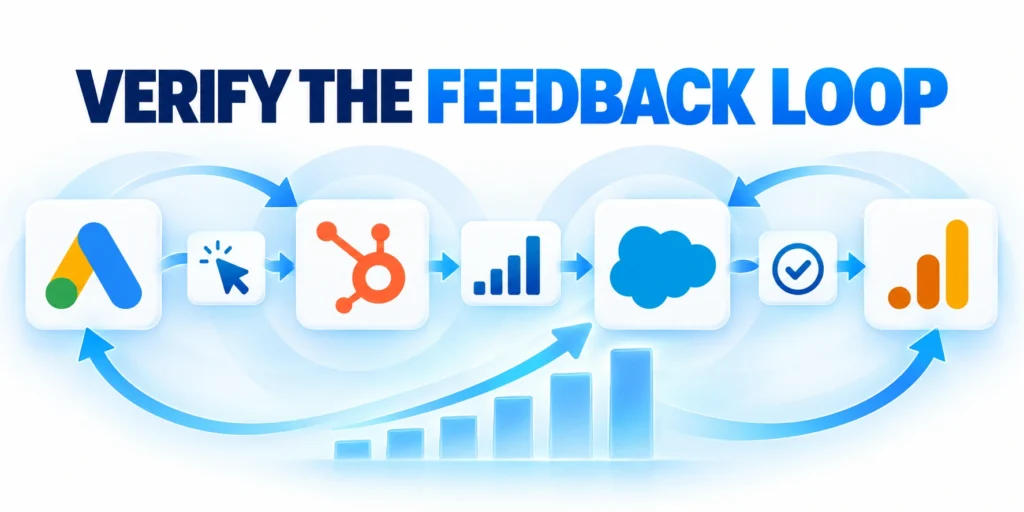
A useful offline conversion setup begins with a defined CRM milestone, a reliable identifier, and an accurate event timestamp. The import must represent a real business outcome.
Verify one lead through the full path before using imported data for bidding. Reconcile CRM records, import diagnostics, and conversion reporting on a regular schedule.
Keep the measurement decision reversible
Start with the new action as an observation signal. Promote it for bidding only when coverage, delay, and lead quality remain stable across a meaningful sales cycle.
Keep a record of the conversion definition, source connection, field mapping, and owner. Recheck it when forms, CRM stages, consent rules, or campaigns change.
Connect offline outcomes to cross-channel retargeting
For the broader framework, read Advanced B2B Retargeting: Maximizing Conversion Rates Across Channels.
Use the same CRM outcomes across acquisition and retargeting. For B2B content syndication on Meta, apply consistent qualification, timing, and value definitions before comparing results.
Operate the feedback loop continuously
Monitor capture, matching, delays, rejection reasons, duplicates, values, and qualified volume. Reconcile a representative sample before changing bidding or budget.
Assign owners for definitions, connectors, CRM mappings, consent, diagnostics, and activation decisions. Review responsibilities whenever systems or workflows change.
Maintain the loop through these operating checks:
- Stable identifiers and event timestamps.
- Documented milestones and value logic.
- Monitored imports with reconciled exceptions.
- Reversible bidding activation and rollback.
Improve from qualified evidence
Compare campaigns through accepted leads, opportunities, pipeline, revenue, and margin after the relevant sales-cycle delay. Label incomplete cohorts before reallocating spend.
Pause optimization when the signal becomes unreliable. Repair measurement, routing, or stage definitions before treating campaign targeting or bidding as the primary cause.
FAQ
These answers clarify common offline conversion tracking decisions.
What is an offline CRM conversion?
It is a later CRM event, such as a qualified lead or sale, connected back to an earlier ad interaction for measurement.
Should I use the old offline import or Enhanced Conversions for Leads?
For a new setup, Google recommends Enhanced Conversions for Leads with Data Manager. Existing implementations should check Google’s migration guidance before changing workflows.
Do I need a GCLID?
Keep available click identifiers whenever possible. Requirements depend on the integration and whether the website tag collects user-provided data.
How soon will imported conversions appear?
Allow several hours for reporting. Diagnose the import and conversion-time columns before concluding that the connection failed.
Can I import more than one CRM milestone?
Yes, when each milestone has a clear purpose and conversion action. Avoid counting repeated or administrative status changes as separate outcomes.
Should every imported milestone be primary?
No. Keep diagnostic or early-stage actions secondary unless they represent the outcome used for bidding and have sufficient quality, coverage, and volume.
How can duplicate imports be prevented?
Use stable event identifiers where supported, preserve source timestamps, and make retries idempotent. Reconcile repeated CRM stage changes before uploading them as new outcomes.
What should be tested after a form change?
Test identifier capture, consent state, CRM field mapping, lifecycle updates, import timing, and reporting. Run a controlled lead through the full journey.
Can conversion values be updated later?
That depends on the integration and adjustment method. Document supported updates and test changes before relying on values for bidding or revenue reporting.
Who should own offline conversion tracking?
Assign one accountable owner with support from marketing operations, revenue operations, analytics, privacy, and sales. Ownership should cover definitions, data quality, releases, and reconciliation.





Leave a Reply